Customize terminal themes, colors, fonts and keys
Choose the page's colors from ten themes, give each terminal a theme of its own, and set single colors, the terminal's font and cursor and every key, in Settings or in one settings file that describes itself.
Ten color themes, light and dark
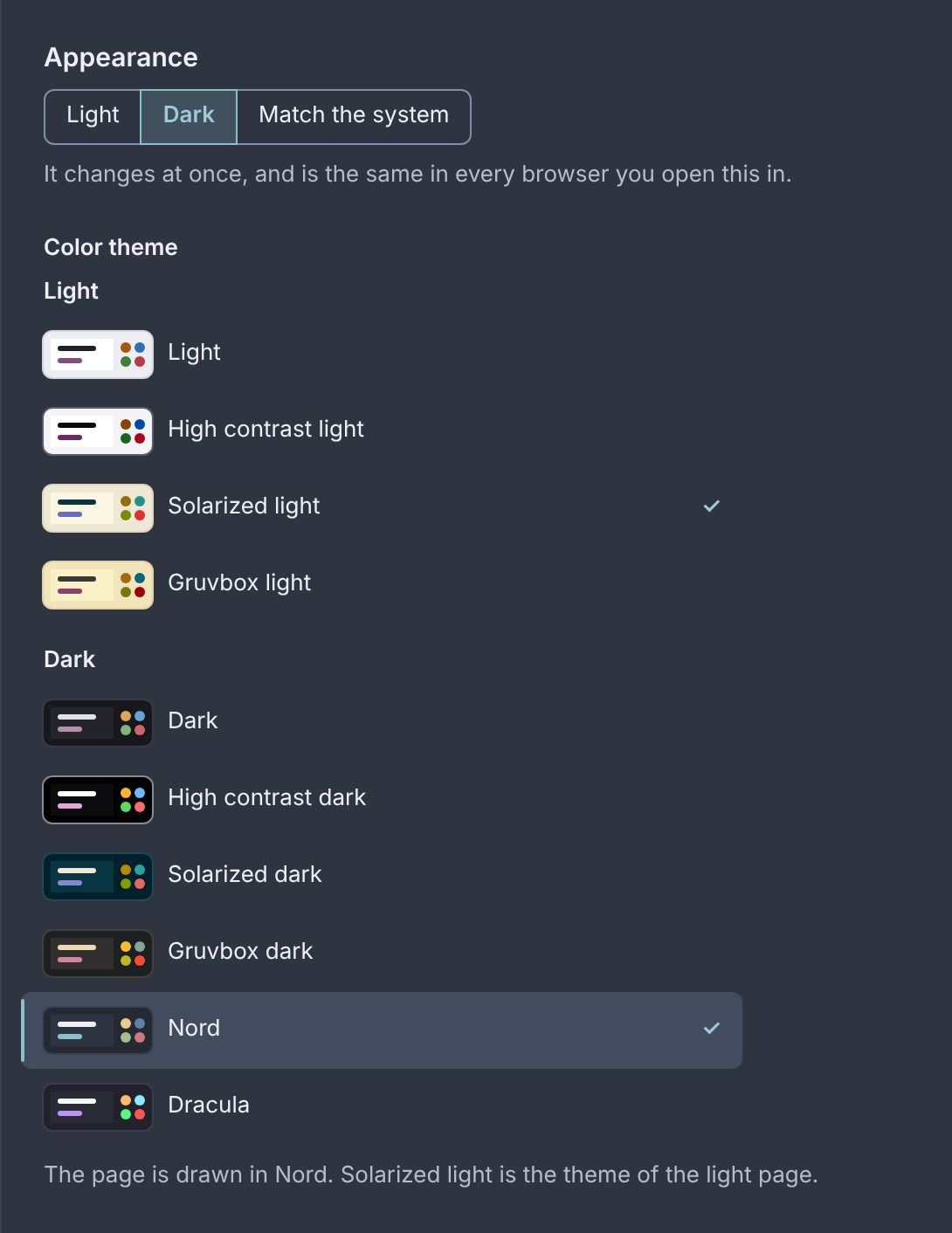
Settings → Appearance starts with three choices: Light, Dark and Match the system, which is where a new install starts and which follows the system when it changes. Under them you choose a theme of each kind: Light, High contrast light, Solarized light or Gruvbox light; Dark, High contrast dark, Solarized dark, Gruvbox dark, Nord or Dracula. Each is shown with a small picture of its colors.
A change applies at once to the page and to every terminal, without a reload, and is kept in the settings file, so every browser you open Aubergine in agrees. The palette has the same as commands, such as Color theme: Nord.
A different color theme for each terminal
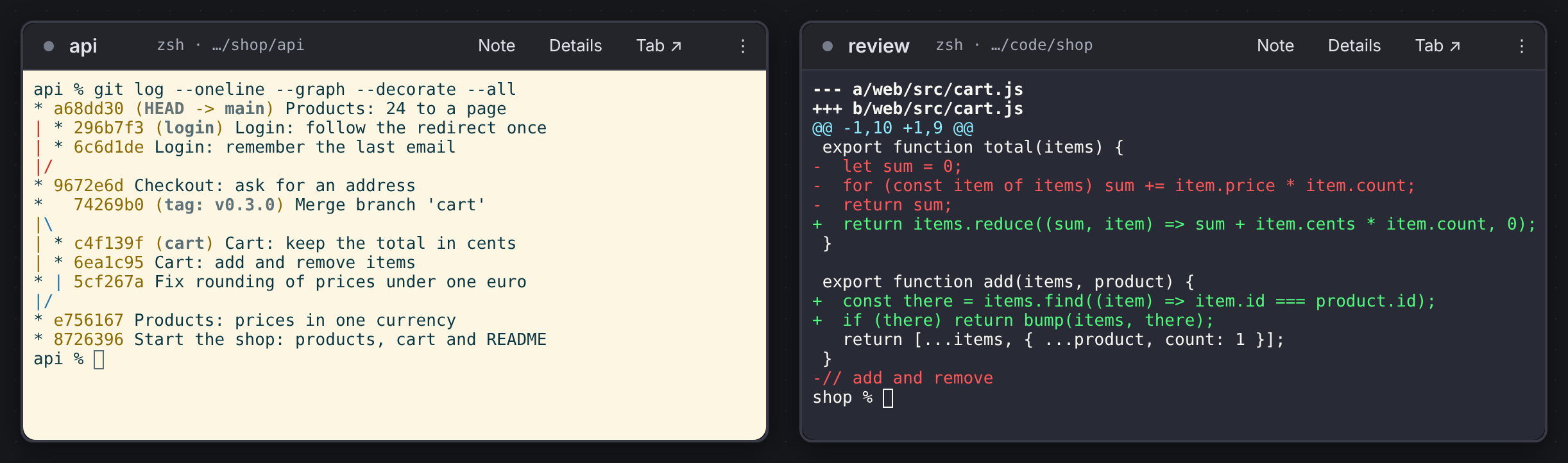
Theme… in a terminal's menu draws that terminal in any of the ten themes, whatever the page is drawn in. Only its body changes: its title, its note and its details stay as the page is. A terminal without a theme of its own follows Terminal theme in Settings, the default for terminals, and without that, the page.
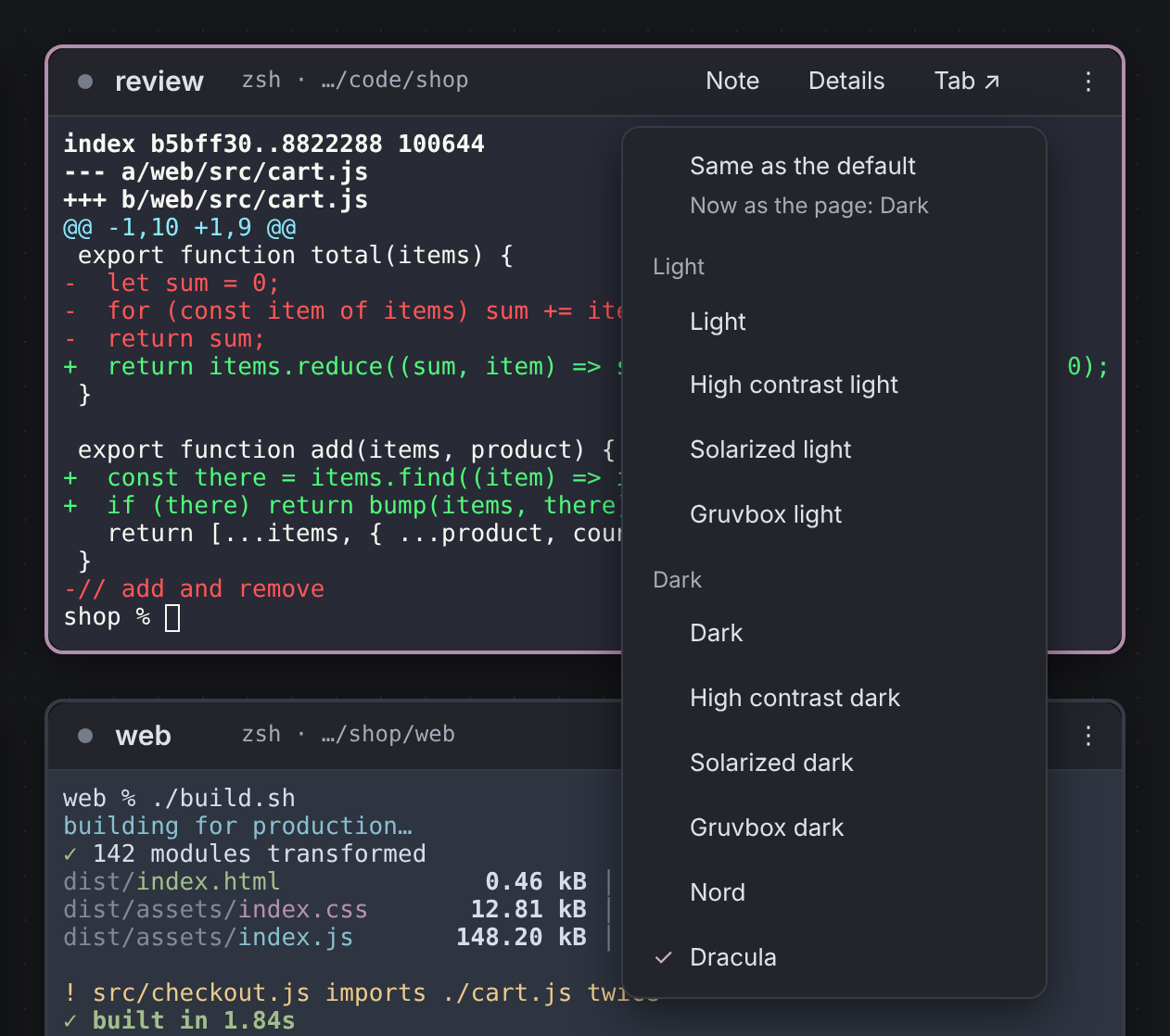
The same choice is in the terminal's row menu in the list, in its details and in the palette. A terminal and a frame can also have a color of their own, one of thirteen or Your own… for any color, and so can a canvas's tab; a terminal's color is its row's in the list too.
Set single colors by hand
Beyond the themes, 35 colors of the page can be set in the settings file, config.json, under appearance.colors: a color's name and a value written #rrggbb. Written at the top, a color is over every theme; written under a theme's ID in brackets, such as "[nord]", it is over that theme alone, and wins.
{
  "$schema": "./config.schema.json",
  "appearance": {
    "colors": {
      "accent": "#c678dd",
      "[nord]": { "terminal-bg": "#242933" }
    }
  }
}
The names are the page's color tokens, such as bg, text, accent and terminal-bg; docs/design.md lists them. A wrong entry is skipped, and the rest of the file still counts; Settings → Appearance says which was skipped. Colors you set are yours: nothing checks that what you wrote can be read.
Themes of your own, as files
A theme of your own is a JSON file in themes/ in the data folder: one of the ten as its base, of the same kind, with any of the 35 colors over it, and a terminal's own colors: its words, the cursor, what is selected, and the sixteen colors a program asks for. It is listed after the ten of its kind, marked yours, and can be chosen wherever they can: for the page, as the default for terminals, or for one terminal. Shadows and the focus ring stay the base's, and nothing in a file is run.
{
  "$schema": "../theme.schema.json",
  "name": "Harbor",
  "kind": "dark",
  "base": "nord",
  "colors": { "bg": "#0e1a24", "accent": "#5fb3b3" },
  "terminal": { "foreground": "#d8dee9", "cursor": "#5fb3b3" }
}
aubergine theme new harbor --from nord writes a file to start from, with every color of the theme it is from; aubergine theme check says what is wrong in one; Read themes again in Settings picks up a change. Whether your colors can be read is yours to judge: Settings only says when text may be hard to read. docs/themes.md has the format.
A theme for a project, and for terminals by tag
A project can draw the page in a theme of its own while you look at it, so that a glance says where you are. In Projects…, When light and When dark beside a project choose one theme of each kind; As the page leaves it to Settings. In every other project the page is as you chose it, and a reload on that project's address is drawn in its theme from the first paint.
By tag, under Terminal theme in Settings, gives the terminals with a tag a theme of their own: every terminal tagged prod in Dracula, for example, at once and whatever the page is drawn in. The first line whose tag a terminal has wins, and a terminal's own theme comes before all of them. In the settings file it is appearance.byTag:
{
  "appearance": {
    "byTag": [
      { "tag": "prod", "theme": "dracula" },
      { "tag": "docs", "theme": "solarized-light" }
    ]
  }
}
Often a different accent is enough. aubergine theme new teal --from nord --accent "#2f9e8f" writes a theme file that changes only Nord's accent and the five colors that go with it, worked out so that they can still be read. Choose it for a project or a tag like any other theme.
Fonts, cursor and keyboard shortcuts
Terminal text in Settings → Appearance sets the size of a terminal's text, from 8 to 32 pixels, and its font, as a list of which the first font found is used. Cursor sets its shape, block, bar or underline, and whether it blinks.
Every key can be changed. Add shortcuts to the settings file: a command's name with a chord, a list of chords, or null for no key. shortcutsInAppWindow takes the same and applies only where Aubergine is installed as an app with a window of its own. Reload the page, and the shortcut sheet (?), the palette and the tooltips show the keys as you set them.
{
  "shortcuts": {
    "terminal.park": "X",
    "attention.next": ["Ctrl+Cmd+G", "W"],
    "view.fit": null
  }
}
A key set twice, or one that cannot be read, is reported at the top of the shortcut sheet and by the server, and the rest of the file still applies. A plain key, or Ctrl or Option with a key, works only while no terminal has the keyboard, so that every program in a terminal still gets the keys it needs. More in Keyboard, in the README.
Choose what a title and a row say
After a terminal's name, its title and its row in the list say what two templates say: text with placeholders such as {state}, {folder}, {time} and {field:Ticket}. Change them in Settings → Appearance → Titles and rows, where the real title and row are drawn under each field as you type, or in the settings file. Here the title says the state, the folder, the field Ticket, the links and the tags, and the row the state, the step of a run, the branch and the time:
{
  "appearance": {
    "titleFormat": "{state} {folder} · {field:Ticket} {links} {tags}",
    "rowFormat": "{state} {step} {branch} · {time}"
  }
}
A placeholder with nothing to say is left out with the text that leads to it: on a terminal with no ticket, links or tags, that title says only its state and its folder, with no dot left over. A template holds text and placeholders only, no markup and no style; each is drawn as the page draws that thing elsewhere, the state in its color and a link as a chip. A wrong placeholder is said under the field and skipped, and Reset puts back exactly what is drawn without a template. Every placeholder is in docs/templates.md.
Your own stylesheet
For anything the settings do not reach, write a stylesheet of your own: custom.css in the data folder. The server links it as the last thing in the page's head, so it is there from the first paint, and a rule of yours wins over one of the app's that is as specific, without !important. aubergine css new writes one to start from, and Settings → Appearance → Your stylesheet says whether it is found, switches it off and reads it again without a reload.
Rely on the hooks and on nothing else: every token (--accent, --radius-surface and the rest), the attributes on the page's root (data-theme, data-page), the parts marked data-part, and a terminal's own attributes (data-tags, data-state, data-name), the same on its node, its row and its browser tab of its own. They are listed in docs/hooks.md and kept from one release to the next; class names are not. Here the title of every terminal tagged prod is dark red, and the map is gone:
[data-part="terminal"][data-tags~="prod"] [data-part="terminal-title"] {
  background: #5c1f24;
}
[data-part="map"] {
  display: none;
}
And rounder corners everywhere, through two tokens:
:root {
  --radius-surface: 16px;
  --radius-control: 10px;
}
If a rule breaks the page, open it with ?plain after its address: it is sent without your stylesheet. Nothing a stylesheet names is fetched from another address: a picture, a font or a stylesheet comes from this server or from inline data, so a pasted snippet cannot send what is on your page elsewhere. That is a guard for a file you wrote or pasted, not a sandbox. It has been tried in Chromium only.
Your own code: plugins
Past the settings and the stylesheet, write code: a plugin is a JavaScript module of your own in plugins/<id>/ in the data folder, with a plugin.json that names it. The page imports it as it is, with no build step, and gives it one object, aubergine: a section of the side panel, a filter of the list, a placeholder for a title or a row, a command in the palette, a way of looking at a run, the state and each change as it happens, and every call the page makes. aubergine plugin new <id> writes one to start from.
A plugin runs in the page as you, and nothing keeps it apart. It can read every terminal, type into any of them and change anything on the page. It is not sandboxed. It runs only once you switch it on in Settings → Plugins, and only as its files were when you did: a file that changes is not loaded until you look again. That keeps code from running by accident; it is not a lock, since an agent in a terminal runs as you too and could write the settings file. Switch on only what you wrote or have read.
The members of aubergine are listed in docs/plugins.md and only added to from one release to the next; anything a plugin reaches past them may change. A command from the palette, in a few lines:
// plugins/hello/index.js
export function activate(aubergine) {
  aubergine.commands.add({
    id: 'hello',
    title: 'Say hello',
    run: () => aubergine.say('Hello from my plugin'),
  });
}
If a plugin breaks the page, open it with ?plain after its address: no plugin is loaded, and your stylesheet is left out. A plugin that fails is said in Settings, and the page and the other plugins carry on. Switched off, everything it added through aubergine goes at once; what it did past that goes with a reload. It has been tried in Chromium only.
One settings file that describes itself
All of this is kept in config.json in Aubergine's data folder, and aubergine settings path prints where that is. Every key may be left out. A file that cannot be read means the defaults, never a server that will not start. Settings in the page writes only the keys it changes and leaves the rest of the file as you wrote it.
Each time it starts, the server writes config.schema.json beside the file. Add one line, and an editor that reads JSON Schema describes and completes every key:
{ "$schema": "./config.schema.json" }aubergine settings list prints every key with its value now, marked where it is not the default, and aubergine settings schema prints the schema. docs/settings.md describes every key, its default, and whether Settings writes it or you do.
aubergine settings path
aubergine settings list
aubergine settings schema
In the page, Settings → Every setting lists the same keys with their values, and finds them as you type. A key that Settings changes takes you to its control; a key written by hand has Copy, for the line to add to the file. Nothing there changes a setting.
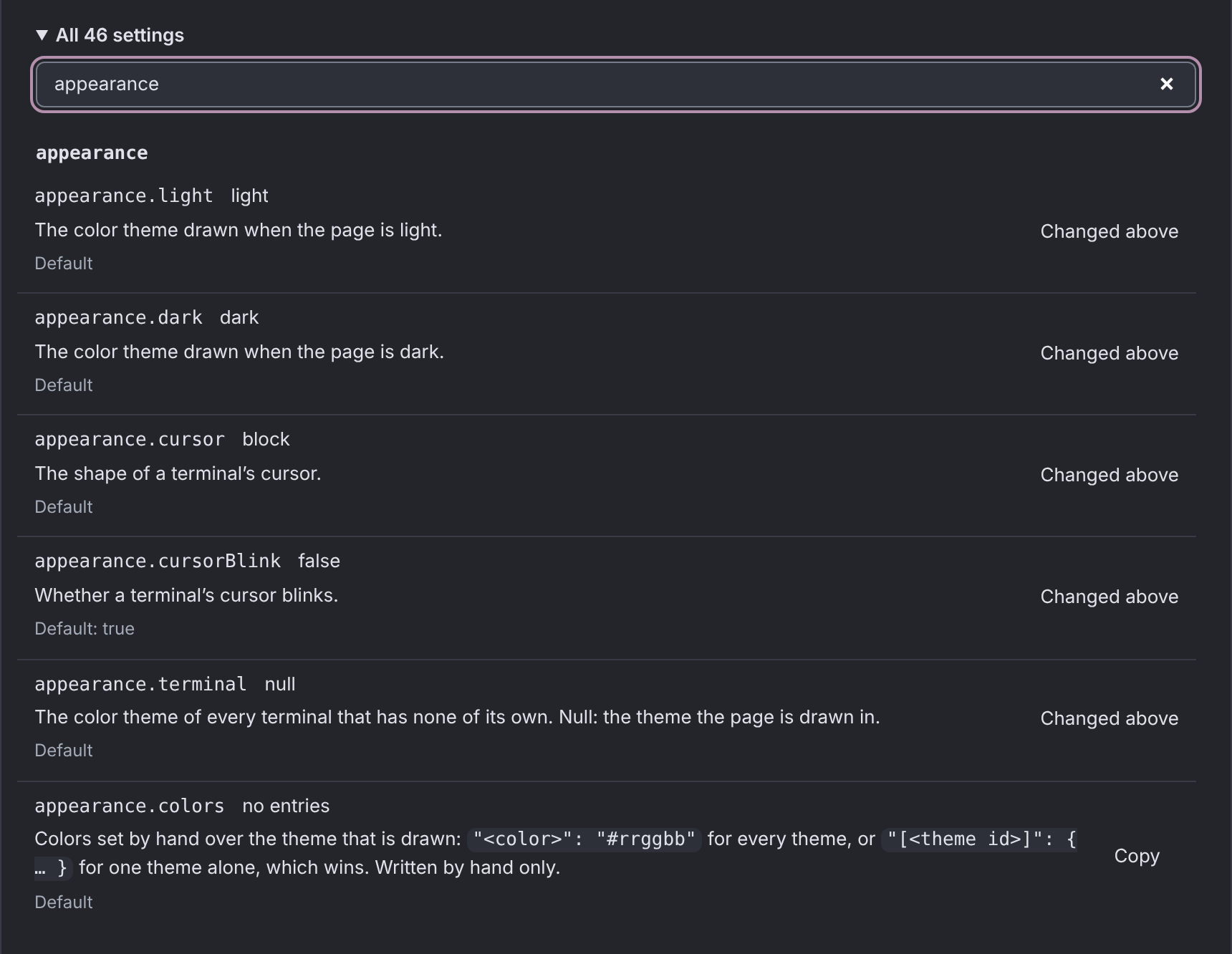
Some choices belong to this browser and are kept there: whether the canvases are tabs, one list or a column; where the bar over the canvas stands and whether it stays open; whether the side panel and the map are folded; the widths of the panel and of a terminal's details; and how the list of terminals is filtered, grouped and sorted.
What a program or an agent may change, and what stays yours
Through the local API, a program with an API token may arrange canvases with canvases:write: name, color and order them, move, resize and color terminals on them, and add frames. With sessions:write it may rename and tag a terminal, change its fields and give it a color theme. It reaches only the projects its token reaches.
The agent in a terminal describes its own terminal and no other: a name, a summary of what it is for, its links and its fields, with aubergine describe, aubergine link add and aubergine field set. Where you wrote a name, a summary or a field yourself, yours stays, and what the agent sent is kept beside it as a suggestion. An agent, or a program with workflows:write, may also propose a color theme with aubergine theme propose: it is drawn nowhere until you have read it under Review, seen it drawn and tried it on the page, and accepted it, and accepting writes its file and chooses nothing.
The settings themselves are yours alone. No token, terminal or agent can change them: PUT /v1/settings/appearance answers only the signed-in browser, and appearance.colors, shortcuts and the rest are written by hand in the file.
How do other tools let you customize the interface?
How this was written. What the table says about each tool is from its own documentation, as read on 28 November 2026 and linked from its name and its cells. We did not run these tools for this. “None found” means that the documentation we read describes none, not that the tool cannot do it. If something here is wrong or out of date, tell us.
| Tool | Settings | Themes and colors | Your own CSS | Your own code | Templates for titles and status |
|---|---|---|---|---|---|
| VS Code An editor | settings.json or the Settings editor, in layers from user to workspace, folder and language | Theme files from extensions; workbench.colorCustomizations, for every theme or for one | Not supported, its documentation says | Extensions, with VS Code's own permissions but no access to the interface's DOM; webviews for an interface of their own | window.title and terminal tab titles take ${…} variables |
| Zed An editor | Settings Editor or settings.json with comments; user, then project | JSON theme files with a schema; theme_overrides for one theme; light, dark or system | None found | Extensions in Rust compiled to WebAssembly, with capabilities you can restrict | None found |
| Obsidian A note-taking app | Files in each vault's .obsidian folder | Themes are CSS, with documented CSS variables | CSS snippets, switched on one by one | JavaScript plugins with Obsidian's own access; none run until Restricted mode is turned off | None found |
| Hyper A terminal | One file: .hyper.js in the documented releases, hyper.json on the development branch | Themes are plugins | css for the window; termCSS, which no longer styles the terminal's text since version 2 | npm plugins loaded by Electron and by the renderer: they wrap its React components and add Redux middleware | None found |
| WezTerm A terminal | A Lua file, .wezterm.lua | Over 700 schemes; your own in Lua or TOML; colors for single colors | None found | The configuration is Lua; plugins are Lua from a Git address | Lua functions return tab and window titles (format-tab-title) |
| tmux A terminal multiplexer | tmux commands in a file; options per server, session, window and pane | Styles such as status-style and window-style | None found | Hooks run tmux commands; control mode for programs | Formats with #{…} for the status line, window list, pane borders and titles |
| kitty A terminal | kitty.conf, with includes, read again when it changes | A theme is a .conf file; kitten themes picks from over 300, and one can be set for dark and one for light | None found | Kittens in Python with full access to kitty's internals; watchers | tab_title_template, where {custom} calls your own Python |
| Ghostty A terminal | A key = value file; config-file adds others | Themes are configuration files; one for light and one for dark | None found | GLSL shaders over the terminal; AppleScript on macOS | None found |
| Windows Terminal A terminal | Settings screen or settings.json, with a JSON schema | Color schemes per profile; themes for the window and tabs, light and dark, in the JSON only | None found | None found; other applications add profiles and color schemes as JSON fragments | None found; a profile sets tabTitle and tabColor |
| iTerm2 A terminal | Profiles in Settings; Dynamic Profiles as property-list files | A profile chosen by user, host, folder or job, with Shell Integration | None found | A Python API, status bar components in Python, AppleScript | Interpolated strings, \(…), in session names, badges and the status bar |
| Aubergine Terminals on a canvas | config.json and Settings, with a JSON Schema for editors | Ten themes, light, dark or as the system; your own as JSON files over one of them; one for a project, for the terminals with a tag and for each terminal; 35 colors by hand, for every theme or one | Yes: custom.css in the data folder, with documented hooks | Yes: plugins, JavaScript modules that run in the page as you, through a documented API and past it. Not sandboxed | Two, for a terminal's title and a row of the list: text with placeholders such as {state} and {field:Ticket} |
Every tool here keeps its settings in a file, and VS Code, Zed and Windows Terminal also have a screen that writes it, as Aubergine does. In most of them a theme is a file too: JSON in VS Code and Zed, CSS in Obsidian, Lua or TOML in WezTerm, a configuration file in kitty and Ghostty. VS Code, Zed and WezTerm let you change single colors over a theme, as appearance.colors does here.
They differ most in code. WezTerm's whole configuration is a Lua program, kitty and iTerm2 run your own Python, and Hyper's plugins are JavaScript that wraps its interface; Obsidian and Hyper also take your own CSS. VS Code's extensions have no access to its interface's DOM, and it supports no style sheet of yours; Zed runs extensions as WebAssembly, with capabilities you can restrict. tmux, WezTerm, kitty and iTerm2 build titles and status lines from templates or functions.
Aubergine today reaches from the settings end to code: themes, colors and keys in files that describe themselves, a page that writes part of the settings, templates for what a terminal's title and its row say, a stylesheet of yours with hooks that are kept stable, and plugins, your own JavaScript in the page with an API that is only added to. A plugin runs with everything the page can do; a sandboxed mode for other people's plugins is on the roadmap, and not built.
What is planned
A sandboxed way of running a plugin someone else wrote, and installing one through the review screen, are planned and not built: see the roadmap.
Questions
Can each terminal have a different color theme?
Yes. Theme… in a terminal's menu draws its body in any of the ten themes, whatever the page is drawn in. Terminals with a tag can be given a theme by that tag in Settings, and the others follow the default you set for terminals, or the page.
Can I add my own CSS to Aubergine?
Yes: custom.css in the data folder (aubergine css new writes one to start from). It is linked last on the page, from the first paint, and the hooks it may rely on are listed in docs/hooks.md. Add ?plain to the page's address to see it without.
Can I write my own plugins for Aubergine?
Yes: a JavaScript module in plugins/<id>/ in the data folder (aubergine plugin new <id> writes one to start from), switched on in Settings → Plugins. It runs in the page as you, with everything the page can do; it is not sandboxed.
Where is Aubergine's settings file?
It is config.json in Aubergine's data folder. aubergine settings path prints where, and the server prints it when it starts.
Can an agent change how Aubergine looks?
Not the settings: they are yours alone. An agent can name and describe its own terminal and propose a color theme, which waits for you to read and accept it; a program whose API token allows it can rename, tag and theme terminals, arrange canvases and propose a theme too.
Related: Find the right terminal · tmux without learning tmux · Security and privacy · FAQ
Aubergine is not affiliated with any of the tools named on this page. Their names are the trademarks of their owners.