
Find the right terminal when you have too many
Twenty tabs, most of them named zsh, three of them running an agent, one of those waiting for you. Aubergine puts every terminal on a canvas and in one list that says what each is doing, so you find a terminal by what it is, not by where you left it.
What people usually do
Name the tabs or windows (most terminal apps let you), split windows into panes, use named tmux sessions and windows, or let a tiling window manager place them. These help you place terminals; finding the one that needs you still means looking.
What Aubergine does
A canvas. Terminals side by side, each live. Drag one by its title, resize it from its edges, double-click the title to rename it. The dot in a title gives it a color; a frame (New terminal ▾ → Frame, or G) groups terminals under a label and moves them together.
Canvases and projects. Several canvases, shown as tabs, one list or a column at the left, each with its own address. A project holds its own canvases, terminals, queue and list of what waits; the switcher at the top left goes between projects.
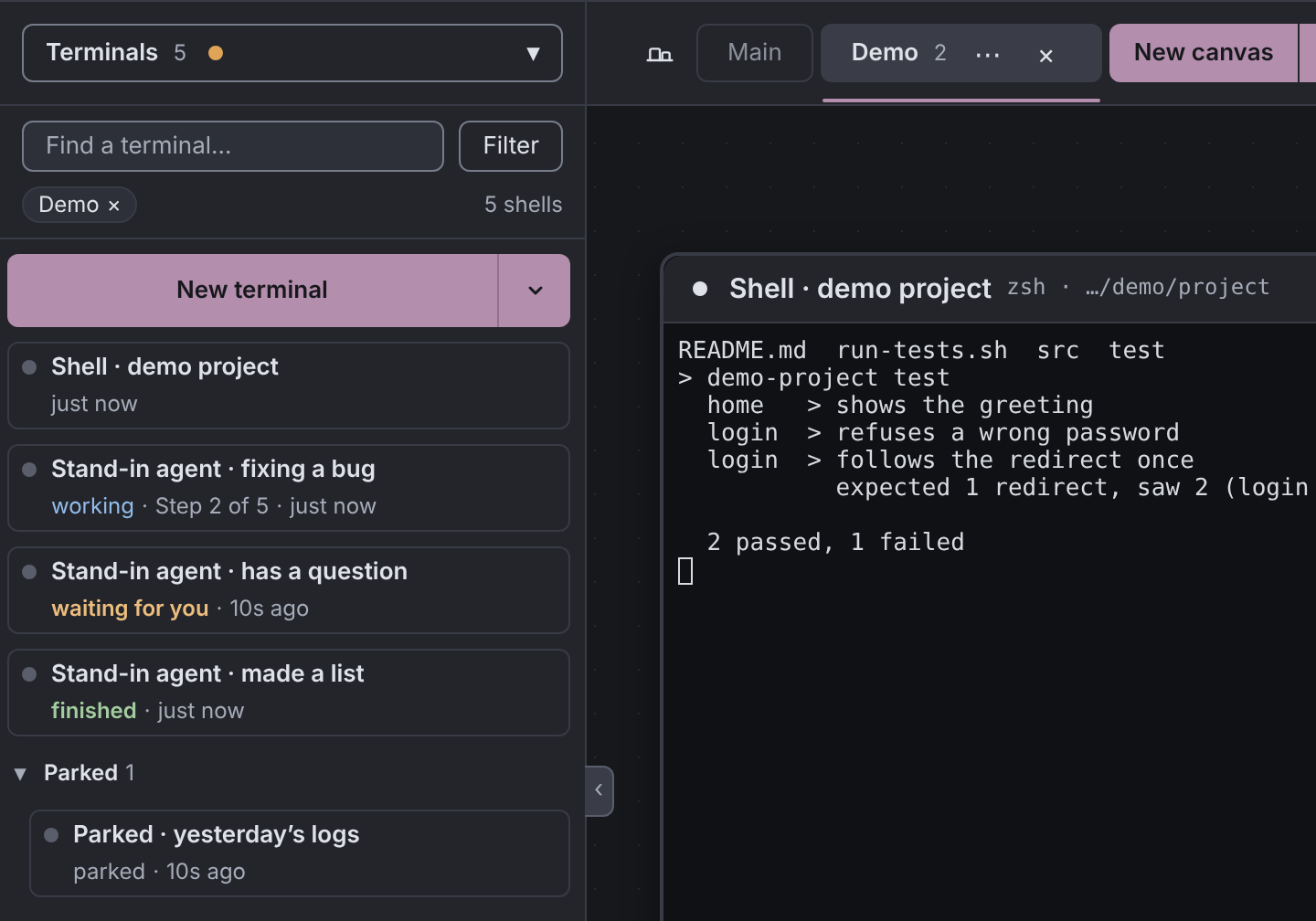
One list of every terminal. The side panel's Terminals lists each one with its state in words (working, waiting for you, finished, a command that failed), the step of its run and when it was last active, for this canvas or all canvases. The field at its top finds a terminal by name, folder, command, note or tags.
Filter holds the filters (waiting for me, busy, unread, has an agent, parked, tags) and how the list is laid out: by canvas, or one flat list in canvas order, by last updated, by last typed in, or by name.
Go to… over the canvas, or ⌘K, is the palette: type part of a name, folder, command or note. Its Terminal output section searches what terminals printed (the last 50,000 lines tmux keeps for each), and a result opens that terminal scrolled back to it.
The map, its button beside Go to…, shows the whole canvas small and pans it. Fit (F) shows everything at once.
What a terminal is for. Each has a note beside it (a summary and a log), and in its details tags, links, and fields such as Ticket: DEMO-12. An agent can write its own terminal's name, summary and fields with the aubergine commands.
One terminal by itself. Tab ↗ in its title opens it in a browser tab of its own, at /t/<terminal>, with its details and note a button away.
Tab and Shift+Tab walk the terminals in the order the list shows them, and W goes to the next one that waits for you.
What it does not do
- It does not arrange things for you. A terminal stands where you put it (a new one goes into free space near the middle of the view), and keeps the name you or its agent gave it.
- It promises no number. Only the canvas you look at keeps live terminals: zoomed far out a terminal shows a picture of its screen, and off screen it costs the page nothing. Each terminal is still a shell on your computer. The list is tested with 1,000 terminals in a unit test (listing, filtering and drawing only a screenful), and a script fills three canvases with 90 terminals for judging by hand. Neither is a promise about your computer.
- Your terminal app's tabs are not shown. Open elsewhere (
O) lists the terminals open there and brings them over one at a time, as a new terminal in the same folder. A program running in a tab stays in that tab.
Questions
How do I organize lots of terminal windows?
In Aubergine: one canvas per piece of work, terminals side by side with names and colors, frames around those that belong together, and one list of all of them with what each is doing.
How do I find which terminal is running a command?
The field over the list matches a terminal's name, folder, command, note and tags, and the palette (⌘K) does the same over every canvas. A terminal's title shows what it runs.
Can I search the output of all my terminals?
Yes, of those still running: the palette's Terminal output section reads each terminal's history when you search, parked ones included, as far back as tmux keeps (50,000 lines). Nothing is indexed or recorded.
How many terminals can Aubergine handle?
There is no set limit. The list is tested with 1,000 terminals and three canvases of 90 have been looked at by hand; each terminal is still a shell, so what your computer can run decides.
Can I name and color my terminals?
Yes. Double-click a terminal's title to rename it, and use the dot in its title for one of thirteen colors or your own. Canvases have names and colors too.
Related: Know when Claude Code is waiting · Keep a process running · Run several coding agents
Up and running in five minutes
You need macOS with tmux 3.2 or newer and Node.js 22 or newer. brew install tmux node gets both.
npm install -g @meatgarden/aubergine