What Aubergine does for Claude Code
Claude Code runs in an Aubergine terminal like any program. Started from Aubergine, it also tells the canvas what it is doing, and Aubergine can brief it, resume it and show how it is set up. This is all of it, in the order you meet it.
You install Claude Code and sign in to it yourself. Aubergine calls no model and holds no key: it starts the claude command you already have.
Start it from the menu
New terminal ▾ → Claude Code, or
Cwhile no terminal has the keyboard, startsclaudein a new terminal with a settings file Aubergine writes in its own data folder. Your own Claude Code configuration is not touched.The command it starts is
agents.claudeCommandin the settings,claudeunless you change it; Aubergine adds its own flags at the end.Where: the menu beside New terminal, at the top of the list of terminals.
-
See when it works, waits and finishes
The hooks in that settings file tell the canvas what the agent is doing. When you submit a prompt, the prompt is added to the terminal's note log and the terminal shows working. When the agent needs you, with a permission question or because it is idle waiting for input, its line turns to the color of waiting and its title and its row say waiting for you. When it stops, it shows finished.
Wgoes to the next terminal that waits, and Notify turns on desktop notifications for terminals that start waiting. Prompts can hold secrets:"agents": { "logPrompts": false }inconfig.jsonkeeps them out of the note log.Where: the terminal's title, its row in the list, and the count beside For you at the top.
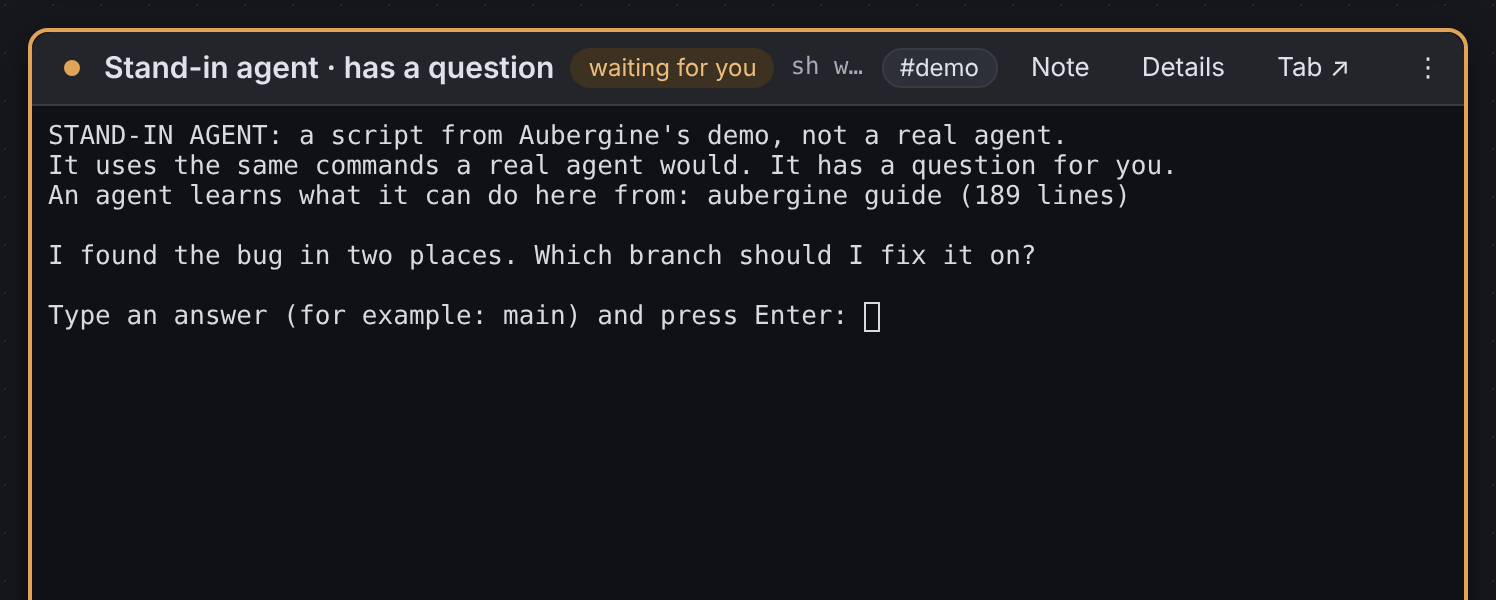
Its line takes the color of waiting, and its title says waiting for you. A Claude Code you started yourself
Typed by hand in a plain terminal,
claudeworks like any program, but Aubergine sees only a shell busy running it: no waiting for you, and nothing is typed for it when you start a workflow there. To change that, print the hooks and add them to your own Claude Code settings by hand. They do nothing outside an Aubergine terminal.aubergine hooks print-
It names itself and keeps a summary
An agent Aubergine starts is told when it begins to name its terminal after the work and keep a summary, with
aubergine describe,aubergine link addandaubergine field set, and is reminded once when it stops with no name of its own or no summary. What you write yourself wins; what the agent says about the same thing waits beside it with Use this. The reminder can be switched off in Settings.Where: the terminal's details, with its name, summary, fields and links.
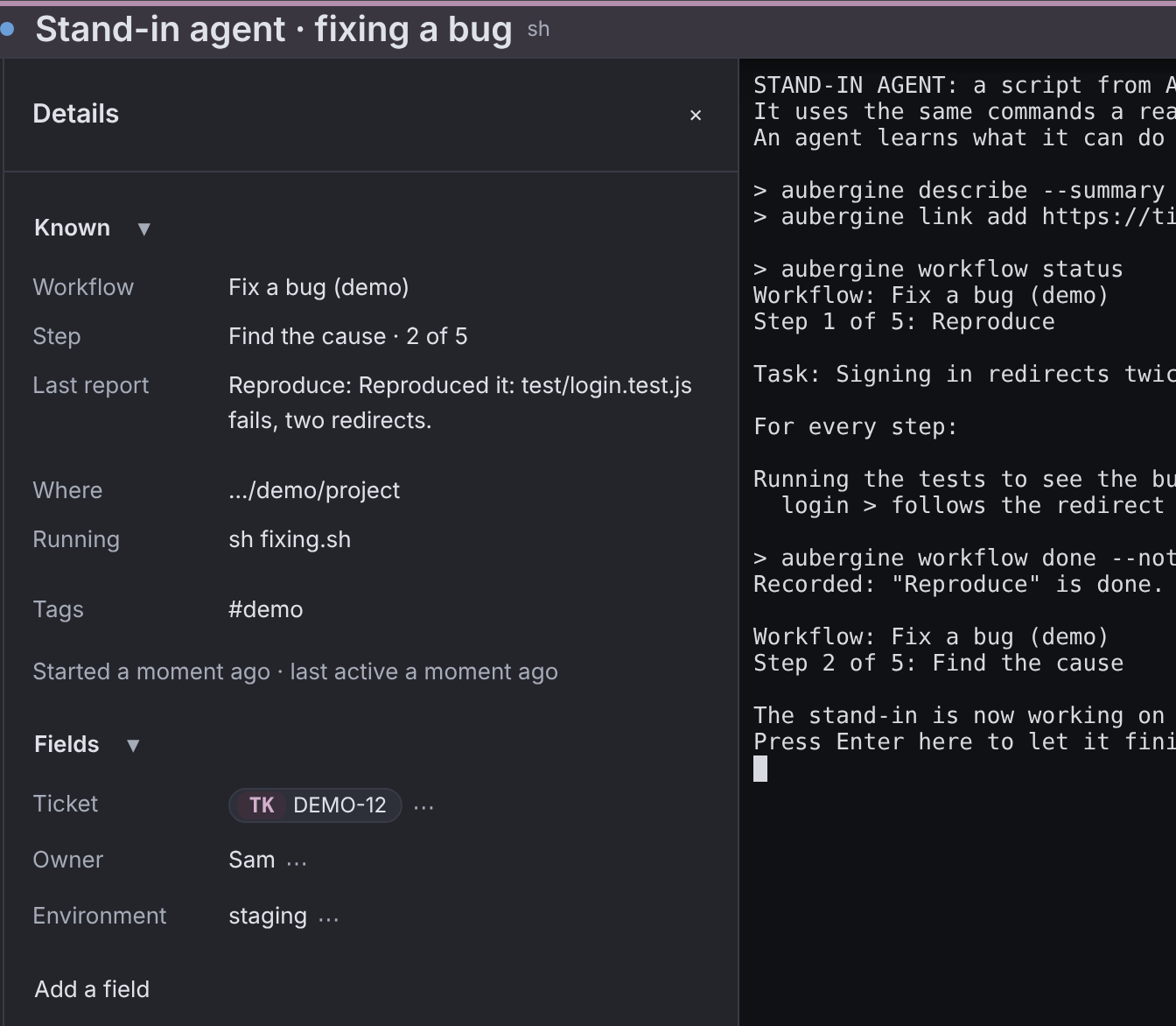
Its details and its note open beside it when you ask, and close again with their buttons. Workflows, tasks, recaps and messages reach it
Aubergine types four fixed sentences into a terminal, and only these: that a workflow was started, that the agent was asked to write something, that you asked for a recap, and that a message waits. Each names one command for the agent to run. A sentence is typed only where an agent is seen to have the keyboard: one that Aubergine started, or one whose settings have the hooks from
aubergine hooks print.In the same way, a task from the queue goes only to a terminal where such an agent is in front and free, and Claude Code on a workflow… starts a new terminal whose agent is told about the run in its first prompt.
Where: Run a workflow… in the menu of a terminal's title, and Runs at the top of the page.
Resume agent
Aubergine remembers which conversation an agent terminal was in. When its shell is back at a prompt, because you exited the agent or the computer restarted, the terminal offers Resume agent, which starts the agent again in that conversation. On a terminal that is on a run, it also tells the agent about the run again.
Where: the terminal's title bar.
Past conversations
Past conversations… lists the agent's earlier conversations in a folder: read one, open it on the canvas, or open a copy that leaves the original as it is. Type
@and some words in the palette to search them;aubergine historylists them on the command line. Nothing read is kept, and no token and no agent can read conversations through Aubergine.It reads the files Claude Code keeps. Their format is internal to Claude Code and changes between versions. After an update of the agent, names and transcripts may be thinner, and a record Aubergine cannot read is said to be so, never shown as empty.
Where: the palette (
⌘K), and “Past conversations in this folder…” in a terminal's details.How it is set up
A list of what the agent's configuration files say it has been given: MCP servers, plugins, hooks, skills, permission rules and settings files, each with where it comes from, and what Aubergine added. Names only, never a value or a secret. It says how the agent is set up, not what the running agent has loaded, and it says plainly what it cannot know, such as connectors that come with your account.
Where: ⚙ on on the terminal, “What is switched on for this agent…” in the palette, and the terminal's details.
Aubergine's tools for it
Claude Code with Aubergine tools… asks first what the agent may do: None; Its own work only, with the terminal's own credential; or More…, scopes you choose, for which a token is made for that one terminal and revoked when the terminal is ended for good. The tools are
aubergine mcp, passed to the agent on its launch line; its own configuration is not written.Where: the menu beside New terminal.
Bring over a Claude Code you already have open
A running agent cannot be moved, but its conversation can. Open elsewhere lists your Claude Code tabs, with Fork to canvas and, for an idle agent, Stop and resume here, which asks you first. From a terminal,
aubergine movedoes the same, andaubergine here --claudestarts Claude Code on the canvas continuing that folder's last conversation.Where: Open elsewhere in the bar over the canvas, or
O.In a working copy of its own
aubergine here --copy --claudestarts Claude Code in its own checkout of the repository, on its own branch, so two agents never edit the same files. The dialog for a Claude Code terminal with tools has the same choice.
What has been tried
The demo that comes with Aubergine uses stand-ins, short scripts that run the same commands and hooks a real agent does, not a real Claude Code. With a real agent, an approval, a working copy, a task from the queue and a schedule have not been tried yet.
Another agent can say most of this through the aubergine commands: see Codex and ChatGPT.
Aubergine is not affiliated with Anthropic. Claude and Claude Code are trademarks of Anthropic.
Up and running in five minutes
You need macOS with tmux 3.2 or newer and Node.js 22 or newer. brew install tmux node gets both.
npm install -g @meatgarden/aubergine